
IZO™+ Multi Cloud Connect Flex inserts a virtual network function (VNF) between the Fabric Port and the cloud. On the solution canvas you configure the VNF (device, size, licensing, management), then the Edge Connect that wires the Fabric Port (A-End) to the VNF (Z-End).
Both steps are cloud-agnostic. The cloud-specific Virtual Cloud Connection that joins the VNF to the provider follows on your cloud service provider’s page.
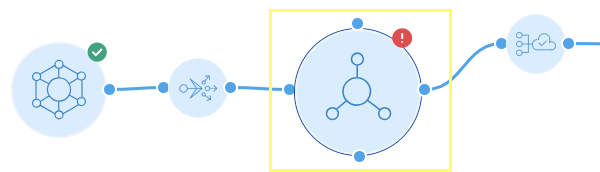
The VNF and Edge Connect are two icons on the same solution canvas as the Fabric Port. Configure the VNF first, then the Edge Connect that references it – the Edge Connect links components by the Alias Name you set on each.
VNF configuration
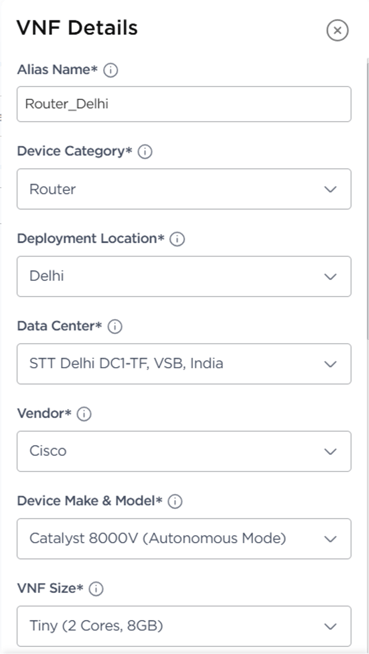
Double-click the VNF icon and complete the fields.
|
Field |
Information |
Mandatory |
What it is / Sample Value |
|
Alias Name |
Alias Name acts as a unique identifier to link components, enabling easy reference throughout the solution. |
Yes |
Router_Delhi |
|
Device Category |
Select the type of Virtual Network Function (VNF) you want to deploy. For Firewall, SD-WAN, or any other specialized device, please contact your designated Account Manager. |
Yes |
Router |
|
Deployment Location |
Select the Fabric Edge location where you want the Virtual Network Function (VNF) to be deployed. |
Yes |
Delhi |
|
Data Center |
Choose the data center within the selected Fabric Edge location where the VNF will be deployed. |
Yes |
STT Delhi DC1-TF, VSB, India |
|
Vendor |
Select your preferred VNF vendor from the available options. For other vendors such as Palo Alto, Fortinet, Versa, VMware, Juniper, or any others, please contact your designated Account Manager. |
Yes |
Cisco |
|
Device Make & Model |
Select the specific device make and model from the vendor you have chosen above. |
Yes |
Catalyst 8000V (Autonomous Mode) |
|
VNF Size |
Select the appropriate VNF size based on your performance requirements. Pricing is determined by the number of allocated vCPU cores: 2 Core, 4 Core, 8 Core, or 16 Core. |
Yes |
Tiny (2 Cores, 8GB) |
|
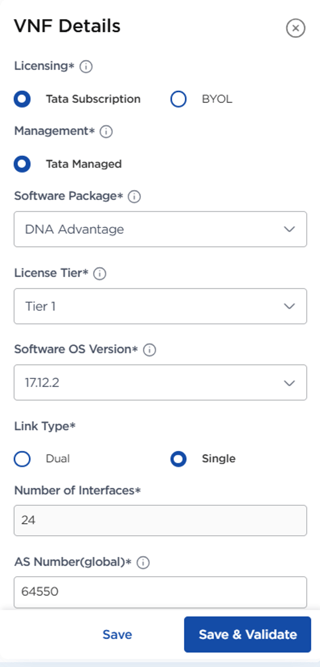
Licensing |
Select the type of Licensing option you would prefer: Tata Subscription - Tata Communications will be responsible for the VNF license of OEM Make and Model. BYOL - Customers provide and manage VNF licenses. |
Yes |
Tata Subscription |
|
Management |
Select the type of Management option you would prefer: Tata Managed - Supplier takes full responsibility for configuration, management, and updates. Day 0, 1, 2 Operations will be managed by supplier. Customer Managed - Supplier will only offer virtual device hosting on MCC Fabric, and the Customer is solely responsible for configuration and management. |
Yes |
Tata Managed |
|
Software package |
Cisco 8000V. Select from the available software packages for the Cisco 8000v Router. Ensure your requirements are well understood or have been reviewed with a Solution Architect. Please note: DNA Essentials supports tiers T0, T1, and T2 only. DNA Advantage supports tiers T0, T1, T2, and T3. |
Yes |
DNA Advantage |
|
License Tier |
Select the required license tier based on your throughput needs. Refer to the official Cisco documentation for guidance. |
Yes |
Tier 1 |
|
Software OS Version |
Cisco 8000V. Select the appropriate software version for your VNF. For detailed release information, refer to the official Cisco release notes. |
Yes |
17.12.2 |
|
Link Type |
Choose your Fabric Port setup: Single Port – One Fabric Port connection. Dual Port – Two connections for redundancy and high availability. |
Yes |
Single |
|
Number of Interfaces |
|
Yes |
24 |
|
AS Number (Global) |
Provide the global AS number if a unified AS is used across multiple regions or locations. |
Yes |
64550 |
Edge Connect configuration
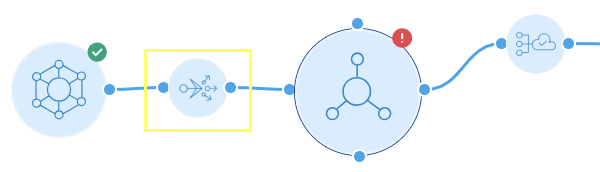
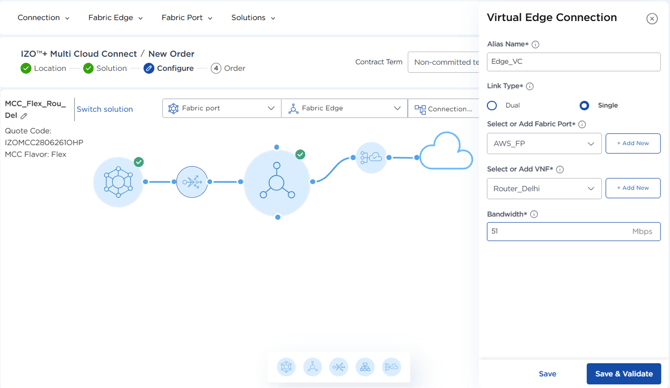
Double-click the Edge icon and complete the fields. Edge Connect extends the path from the Fabric Port to the VNF.
|
Field |
Information |
Mandatory |
What it is / Sample Value |
|
Alias Name |
Alias Name acts as a unique identifier to link components, enabling easy reference throughout the solution. |
Yes |
Edge_VC |
|
Link Type |
Choose how the Fabric Port connects to the VNF: Single Link – One connection between the Fabric Port and the VNF. Dual Link – Two separate connections for redundancy and high availability (requires two Fabric Ports). |
Yes |
Single |
|
Select or Add Fabric Port |
Select an existing A-End Fabric Port for the Edge Connect or create a new one if it's not already available. |
Yes |
AWS_FP |
|
Select or Add VNF |
Select the Z-End VNF for the Edge Connect or create a new one if it's not already available. |
Yes |
Router_Delhi |
|
Bandwidth |
Choose the bandwidth for the Edge Connect link between the Fabric Port and the VNF. |
Yes |
50 |
Next Step: Virtual Cloud Connection: choose your cloud
At the Virtual Cloud Connection step, select your target cloud service provider. The Virtual Cloud Connection fields, order completion and the cloud-side setup are specific to each provider and continue on that cloud's page as one flow – follow the page for your cloud:
-
IZO™+ Multi Cloud Connect Flex – Azure: Virtual Cloud Connection, order & connection
- IZO™+ Multi Cloud Connect Flex – GCP: Virtual Cloud Connection, order & connection
Your cloud provider specific page carries the checkout and Get Network Config steps, so you complete the order there without returning to this page
Related Links