
For Google Cloud on IZO™+ Multi Cloud Connect Direct: first create a Partner Interconnect VLAN attachment in the Google Cloud console and copy the pairing key; configure the Virtual Cloud Connection with that key; complete the order; then activate the VLAN attachment. Google allocates the BGP link-local addressing automatically, so you enter no ASN or BGP key, and Get Network Config returns nothing to enter.
This page continues the IZO™+ Multi Cloud Connect Direct order for Google Cloud. Complete the prerequisite below first, then configure the Virtual Cloud Connection, complete the order, and finish on the Google Cloud side.
Prerequisite – create the VLAN attachment and copy the pairing key
Prerequisite – before you start
Google Cloud requires a Partner Interconnect VLAN attachment before Tata Communications can provision the connection. Create it in the Google Cloud console and copy the pairing key – you enter that key in the Virtual Cloud Connection. This is the Google Cloud equivalent of the Azure ExpressRoute service key.
-
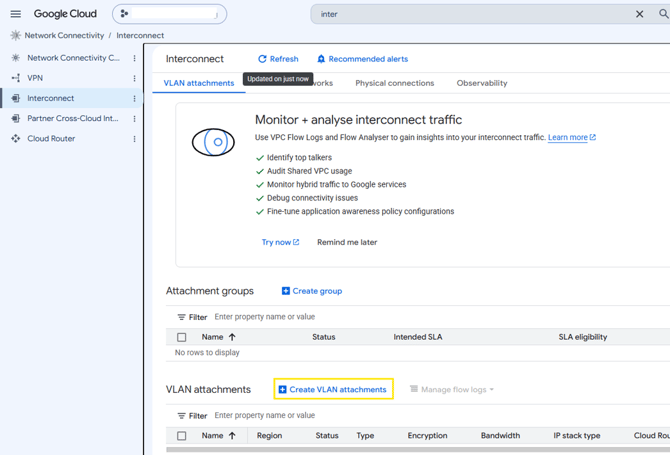
In the Google Cloud console, search for Interconnect and open Network Connectivity --> Interconnect.
-
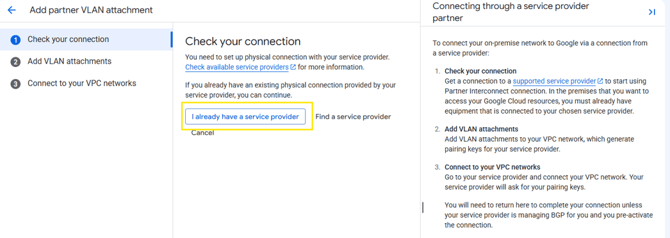
Select Partner Interconnect, click Continue, then choose “I already have a service provider”.
-
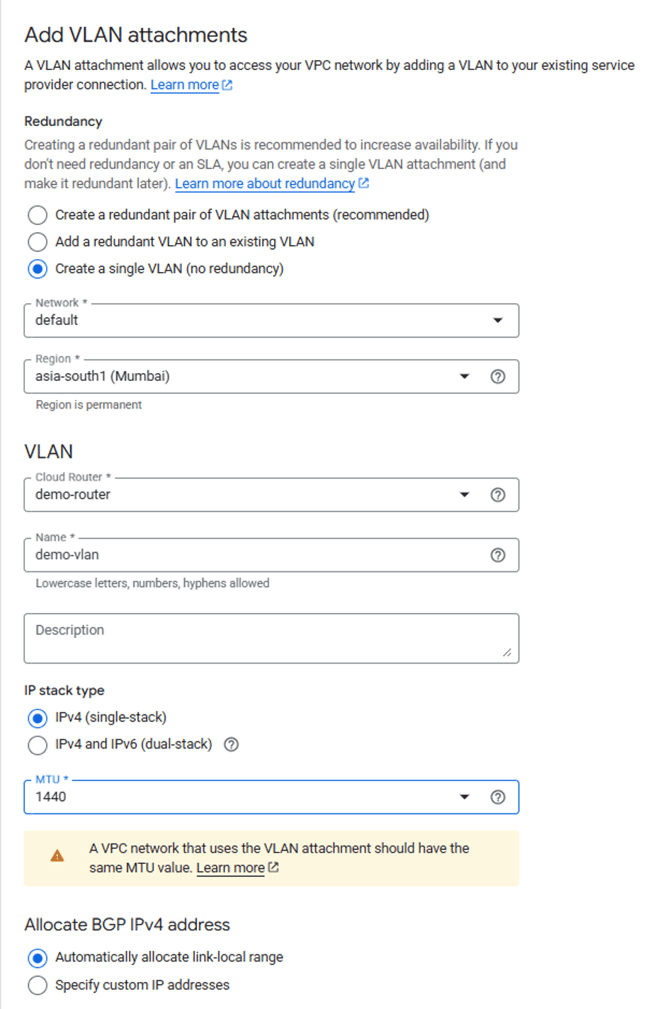
Enter the details below, then click Create.
Field
Information
What it is / Sample Value
Mandatory
Redundancy
Whether to create a single or a redundant pair of VLAN attachments for high availability.
Create a redundant pair of VLAN attachments
Yes
Network
The VPC network the VLAN attachment is attached to.
your VPC network
Yes
Region
The region where the VLAN attachment is created (not editable after creation).
your GCP region
Yes
Cloud Router
Required for dynamic routing over BGP; select an existing Cloud Router or create one.
your Cloud Router
Yes
Name
A unique name for the VLAN attachment.
unique name
Yes
Description
Optional context for the attachment.
optional
No
IP Stack Type
The IP protocol support for the VLAN attachment.
IPv4 (single stack)
Yes
MTU
Maximum Transmission Unit size for the connection.
Default
No
BGP IPv4 Address Allocation
How BGP peering addresses are assigned. Google can auto-allocate the link-local range.
Automatically allocate link-local range
Yes
-
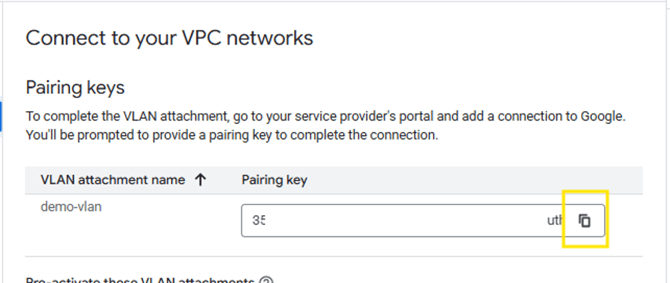
Once the VLAN attachment is created, copy the Pairing Key from the Pairing keys section – you share it with Tata Communications and enter it in the Virtual Cloud Connection.
Virtual Cloud Connection – Google Cloud
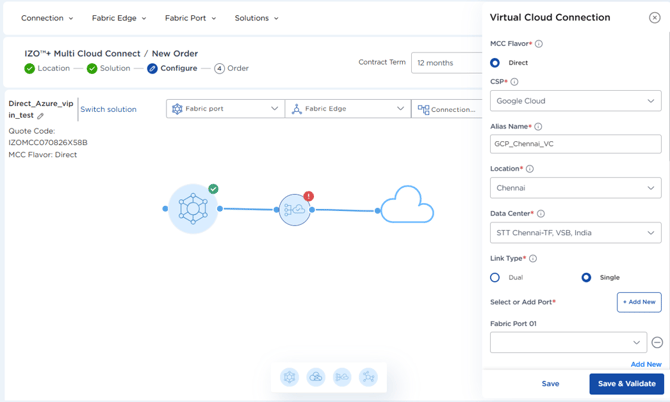
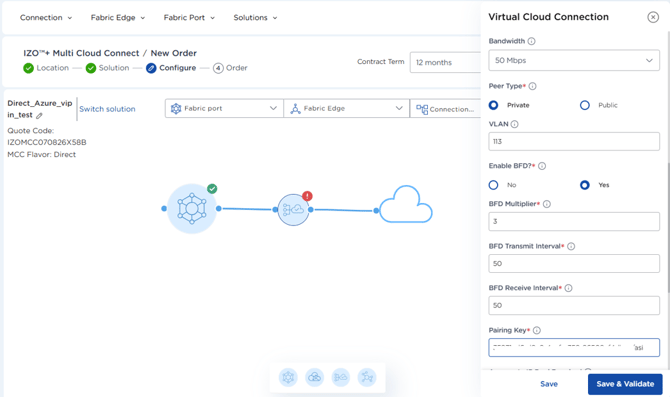
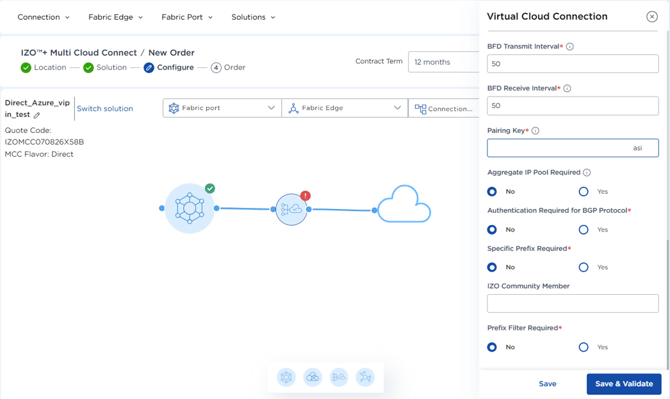
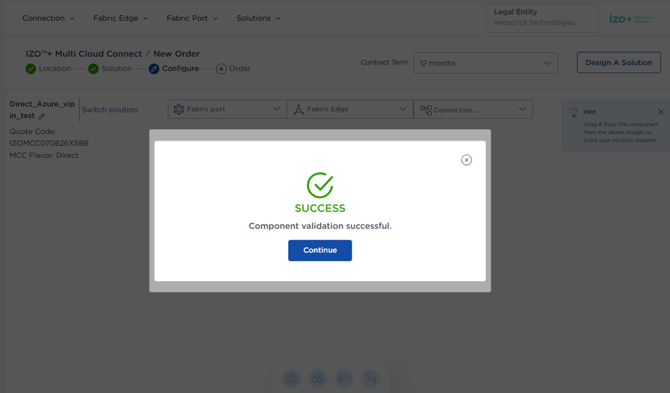
Double-click the Virtual Cloud Connection icon and enter the required configuration details as shown in the screenshots. Once completed, click Save and Validate.
|
Field |
Information |
What it is / Sample Value |
Mandatory |
|
MCC Flavor |
Virtual Cloud Connect supports MCC Flavors:
|
MCC Direct |
Yes |
|
CSP |
Select the Cloud Service Provider (CSP) with which you intend to establish Direct Connectivity. |
Google Cloud |
Yes |
|
Alias Name |
Alias Name acts as a unique identifier to link components, enabling easy reference throughout the solution. |
GCP_VC |
Yes |
|
Location |
Select the desired CSP Direct Connect location based on your deployment requirements. |
Mumbai |
Yes |
|
Data Center |
Select the data center corresponding to the CSP Direct Connect location where you want to establish connectivity. |
STT Mumbai DC1_MB1-TD,LVSB, India |
Yes |
|
Link Type |
Specifies the connection setup between the VNF and the CSP:
|
Dual |
Yes |
|
Select or Add Port |
Select the Fabric port |
GCP_Mum_FP |
No |
|
Bandwidth |
Specify the bandwidth for the Virtual Cloud Connect link between the Fabric Port/VNF and the CSP. |
50 Mbps |
Yes |
|
Redundancy Type |
Choose Primary or Secondary in case of Dual Connectivity. |
Primary |
Yes |
|
Peer Type |
Select the desired CSP Peer Type:
|
Private |
Yes |
|
VLAN |
Use VLAN ID 113 for private peering and 115 for public peering. |
|
No |
|
Enable BFD |
Enable Bidirectional Forwarding Detection (BFD) to quickly detect link failures in the BGP session. |
No |
No |
|
BFD Multiplier |
Set the BFD detection multiplier, which defines how many missed messages indicate a failure. |
3 |
No |
|
BFD Transmit Interval |
Specify the time interval (in milliseconds) between sending BFD packets to the peer. |
300 |
No |
|
BFD Receive Interval |
Specify the minimum time (in milliseconds) the system expects between receiving BFD packets from the peer. |
300 |
No |
|
Pairing Key |
Enter the GCP Pairing Key generated in the Google Cloud console to establish the Partner Interconnect; this key uniquely identifies your VLAN attachment. |
Use the GCP Pairing Key created at the beginning of the demo guide. |
Yes |
|
Aggregate IP Pool Required |
An aggregate route is only active and installed in the routing table when at least one of its contributing, more-specific routes is also active. A contributing route must have a longer prefix length and match the aggregate prefix. Example: 10.10.0.0/16 10.10.1.0/24 10.10.2.0/24 The aggregate route 10.10.0.0/16 will become active if either 10.10.1.0/24 or 10.10.2.0/24 is in the routing table. The aggregate route is then often advertised to other routers, summarizing all the specific routes in one entry. |
N/A |
No |
|
Authentication Required for BGP Protocol |
|
No |
No |
|
Specific Prefix Required |
This provides you with the option to specify, Prefix Exact in and Prefix Exact Out and others. |
N/A |
No |
|
Prefix filter Required |
This provides you with the option to specify Public Prefix Advertisement from MPLS to Cloud and Public Prefix Advertisement from Cloud to MPLS. |
N/A |
No |
On Google Cloud you do not enter an ASN or a BGP key – Google allocates the BGP link-local addressing automatically.
Complete the order
With the Fabric Port and Virtual Cloud Connection validated, set the commercials and place the order.
-
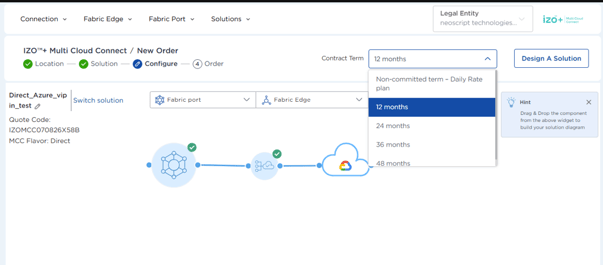
Set the Contract Term. The Total Contract Value (TCV) refreshes automatically; click Price Breakup to see the component-wise charges.
-
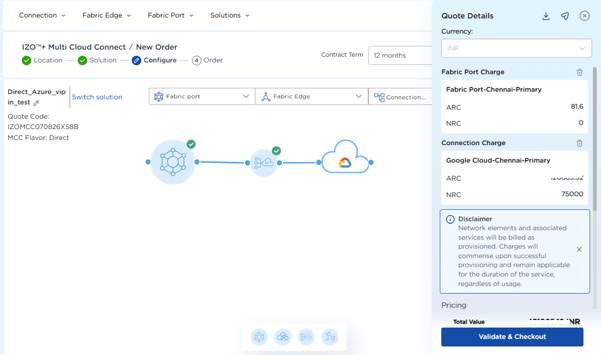
On the Price Breakup screen, review the charges. You can download the draft quote and click Get Ask Price for specific pricing.
-
Enter the expected ARC and NRC, then Submit.
-
Click Checkout to place the order.
-
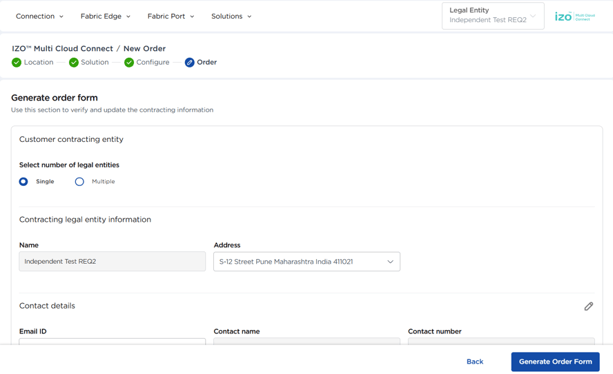
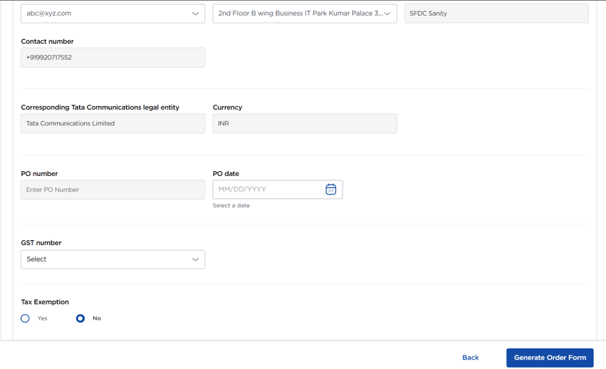
Enter the Customer Contracting Entity details, then click Generate Order Form.
-
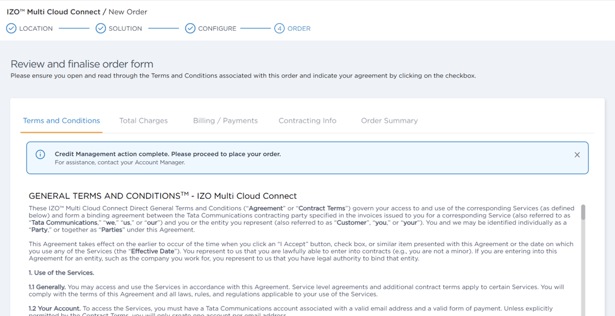
Review the Order Form – Terms and Conditions, Total Charges, Billing and Payments, Contracting Information and Order Summary – and check the agreement box.
-
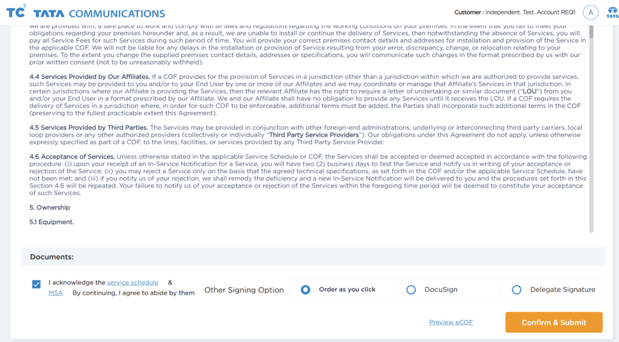
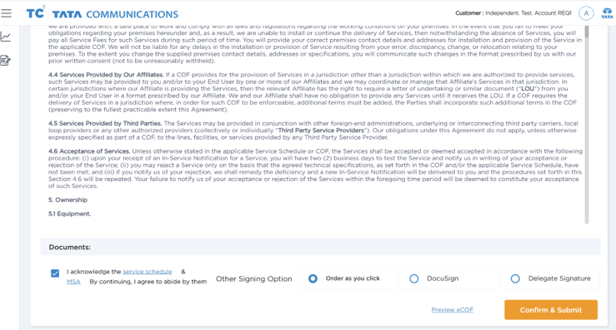
Click Order as You Click to submit directly, or choose DocuSign / Delegate Signature to send the Customer Order Form to another approver.
-
Click Preview eCOF to view or download the draft Customer Order Form. Provisioning begins once the order is signed.
Get Network Config
Once the order is provisioned, open Inventory --> IZO™+ Multi Cloud Connect to view the provisioned components – Fabric Port, Fabric Edge, Connections and the full Solution Inventory.
-
Open the Connections inventory and confirm your Virtual Cloud Connection reaches Active state – when it is Active, the BGP connection has established successfully.
On Google Cloud, Google provides the BGP addressing (link-local, allocated automatically), so Get Network Config returns nothing to enter – there are no peer IPs to copy to the cloud side, unlike AWS and Azure.
Google Cloud side – activate the VLAN attachment
These steps are completed in the Google Cloud console
1. Activate the VLAN attachment
Once Tata Communications has provisioned the connection, open Network Connectivity --> Interconnect and activate the pending VLAN attachment so the Cloud Router can establish BGP. Google assigns the BGP peering addresses automatically – there is nothing to enter from Get Network Config.
2. Confirm BGP is up
When the VLAN attachment is active and the Cloud Router session establishes, BGP is up – the end-to-end connection is complete. You can confirm the connection is in Active state in the TCx Portal inventory.
For the full Google Cloud-side reference, see Google Cloud Connection Setup.
Related pages
- Placing a IZO™+ Multi Cloud Connect Direct Order
- Placing a IZO™+ Multi Cloud Connect Flex Order
- Google Cloud Interconnect Overview
- Google Cloud Troubleshooting
- Google Cloud FAQs