
For Azure on IZO™+ Multi Cloud Connect Flex: first create an ExpressRoute circuit in the Azure portal and copy the service key; configure the Virtual Cloud Connection with that key (Azure is dual by default), complete the order, then configure Azure Private Peering.
Flex uses customer-defined BGP addressing, so you enter your interface IP, neighbour IP, subnet (/30) and ASN, plus a BGP key you set on both ends.
This continues Placing a IZO™+ Multi Cloud Connect Flex Order at the Virtual Cloud Connection step for Microsoft Azure. Complete the prerequisite below first, then configure the Virtual Cloud Connection, complete the order and finish on the Azure side.
Prerequisite – before you start
Azure requires an ExpressRoute circuit before Tata Communications can provision the connection. Create it in the Azure portal and copy the Service Key – you enter it in the Virtual Cloud Connection. This is the Azure equivalent of the AWS Account ID or the Google Cloud pairing key.
Prerequisite – create the ExpressRoute circuit and copy the service key
-
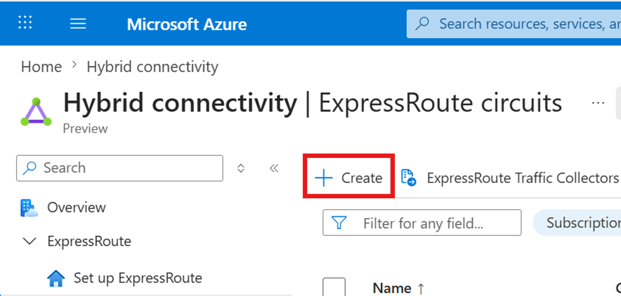
In the Azure portal, search for ExpressRoute Circuits and select it, then click Create.
-
Enter the details below, then click Review + Create and, once validation passes, Create.
Field
Information
What it is / Sample Value
Mandatory
Subscription
Select the subscription you want to use to create the ExpressRoute circuit.
Pay-as-you-go
Yes
Resource Group
A resource group is a collection of resources that share the same lifecycle, permissions, and policies.
Select your resource group
Yes
Resiliency
Maximum Resiliency (Recommended): resiliency across two or more distinct edge locations, each with redundant physical links.
High Resiliency: metro model offering resiliency across distinct edge locations, each with a single physical link.
Standard Resiliency: physical link redundancy within one edge location only.
Standard Resiliency
Yes
Region
Region defines the Azure location where your ExpressRoute circuit is created and connected to Microsoft’s network.
South India
Yes
Circuit name
The name must begin with a letter or number, end with a letter, number or underscore, and may contain only letters, numbers, underscores, periods or hyphens.
IZOMCCDemoGuide-Azure
Yes
Port type
Select Provider if you are connecting through a service provider to access Microsoft’s network. Select Direct if you have an ExpressRoute Direct resource.
Provider
Yes
Peering location
The location where the ISP will provision the connection.
Chennai
Yes
Provider
The ISP that will be providing the ExpressRoute connection.
Tata Communications
Yes
Bandwidth
The maximum bandwidth for the provisioned connection. Downgrading a circuit’s bandwidth is not supported, so choose a bandwidth that matches your needs.
50 Mbps
Yes
SKU
Local: free egress; access to 1–2 Azure regions in the same metro (available at 1 Gbps or higher).
Standard: access to all Azure regions in the same geopolitical region.
Premium: 4K+ routes, 10+ virtual networks and global connectivity.
Standard
Yes
Billing model
Inbound data transfer is free. Unlimited provides outbound transfer for a fixed monthly fee; Metered charges a pre-set rate. Downgrade from Unlimited to Metered is not allowed after creation.
Metered
Yes
-
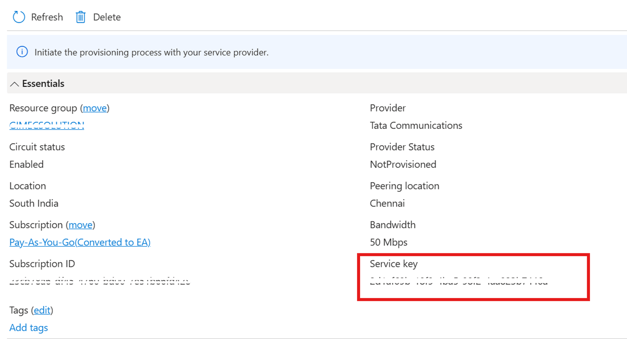
After deployment, open the circuit and copy the Service Key from the overview – you share it with Tata Communications and enter it in the Virtual Cloud Connection.
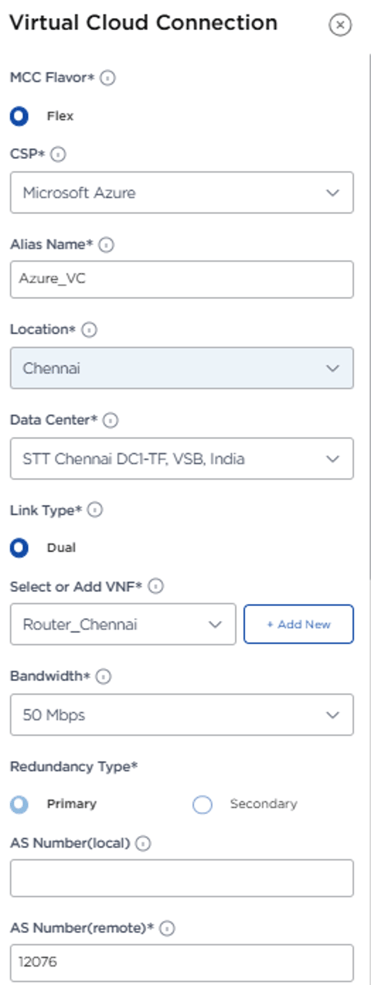
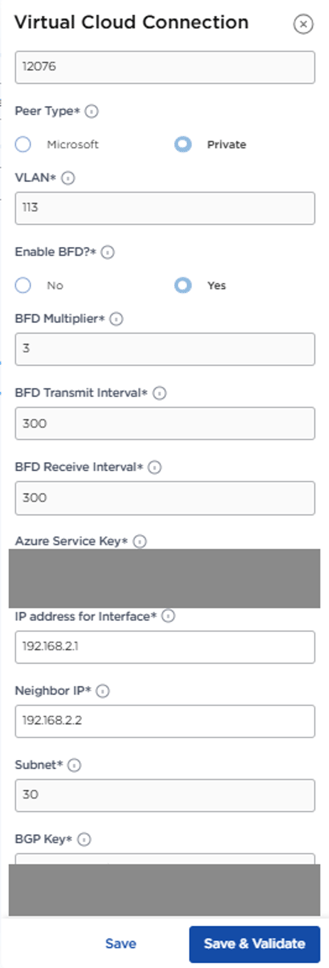
Virtual Cloud Connection – Azure
Double-click the Virtual Cloud Connection icon, complete the fields, then Save and Validate.
|
Field |
Information |
What it is / Sample Value |
Mandatory |
|
|
MCC Flavor |
Virtual Cloud Connection supports MCC flavors:
|
Flex |
Yes |
|
|
CSP |
Select the Cloud Service Provider (CSP) with which you intend to establish connectivity. |
Microsoft Azure |
Yes |
|
|
Alias Name |
Alias Name acts as a unique identifier to link components, enabling easy reference throughout the solution. |
Azure_VC |
Yes |
|
|
Location |
Select the desired CSP location based on your deployment requirements. |
Chennai |
Yes |
|
|
Data Center |
Select the data center corresponding to the CSP location where you want to establish connectivity. |
STT Chennai DC1 – TF, VSB, India |
Yes |
|
|
Link Type |
Specifies the connection setup between the VNF and the CSP:
|
Dual |
Yes |
|
|
Select or Add VNF |
Select the A-End VNF for the Virtual Cloud Connection, or create a new VNF if one is not already available. |
Router_Chennai |
Yes |
|
|
Bandwidth |
Specify the bandwidth for the Virtual Cloud Connection link between the Fabric Port/VNF and the CSP. |
50 Mbps |
Yes |
|
|
Redundancy Type |
Choose Primary or Secondary in case of Dual Connectivity. |
Primary |
Yes |
|
|
AS Number (Local) |
Specify the Autonomous System (AS) number assigned to your local network for BGP configuration. |
– |
No |
|
|
AS Number (Global) |
Provide the global AS number if a unified AS is used across multiple regions or locations. |
12076 |
Yes |
|
|
Peer Type |
Select the desired CSP peer type: Private – a private virtual interface to access a VPC/VNet using private IP addresses. Public – a public virtual interface to access public services using public IP addresses. Transit – a transit virtual interface to access one or more Transit Gateways associated with the ExpressRoute gateway. |
Private |
Yes |
|
|
VLAN |
The VLAN ID used for the Azure connection. |
113 |
Yes |
|
|
Enable BFD |
Enable Bidirectional Forwarding Detection (BFD) to quickly detect link failures in the BGP session. |
Yes |
Yes |
|
|
BFD Multiplier |
Set the BFD detection multiplier, which defines how many missed messages indicate a failure. |
3 |
No |
|
|
BFD Transmit Interval |
Specify the interval (in milliseconds) between sending BFD packets to the peer. |
300 |
No |
|
|
BFD Receive Interval |
Specify the minimum interval (in milliseconds) expected between receiving BFD packets from the peer. |
300 |
No |
|
|
Azure Service Key |
The ExpressRoute Service Key you copied in the prerequisite. |
Use the Azure Service Key created |
Yes |
|
|
IP address for Interface |
Provide the IP address to be configured on your interface for BGP peering. |
192.168.1.1 |
Yes |
|
|
Neighbor IP |
Enter the IP address of the BGP peer (CSP interface) to establish the connection. |
192.168.1.2 |
Yes |
|
|
Subnet |
Specify the subnet mask for the IP address used in the BGP interface configuration. |
30 |
Yes |
|
|
BGP Key |
Enter the shared password (authentication key) used to secure the BGP session. |
a customer-chosen secret |
Yes |
|
Note
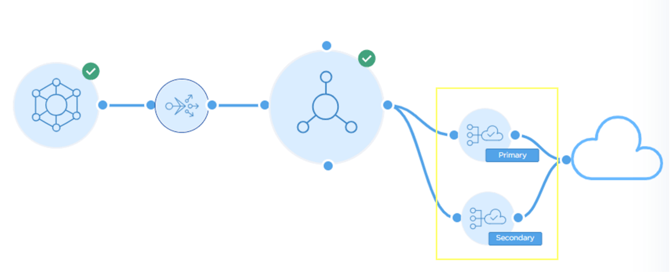
Azure is dual by default. Click Save and go to Secondary Connection, then enter the secondary interface IP 192.168.2.1 and neighbour IP 192.168.2.2 (/30).
Complete the order
-
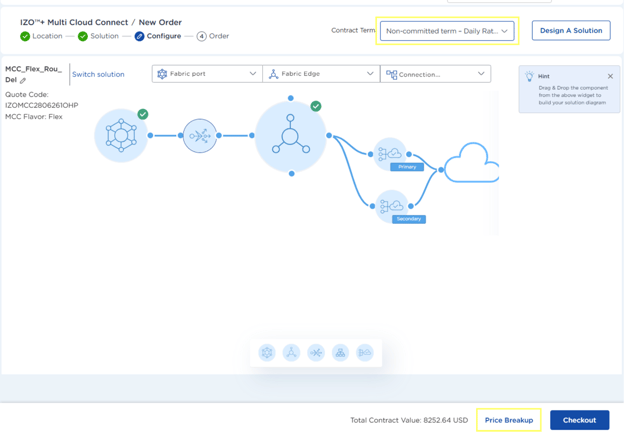
Set the Contract Term; the Total Contract Value refreshes automatically. Click Price Breakup for component-wise charges.
-
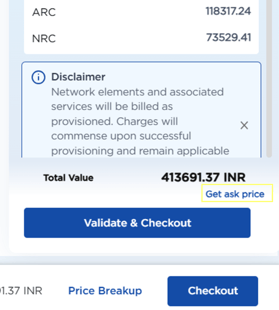
On Price Breakup, download the draft quote and click Get Ask Price for specific pricing.
-
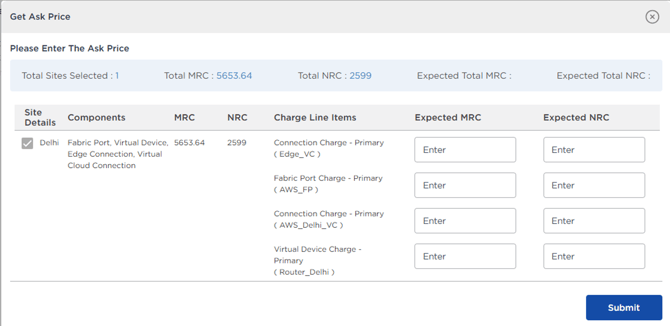
Enter the expected ARC (Annual Recurring Charges) and NRC (Non-Recurring Charges), then Submit.
-
Click Checkout.
-
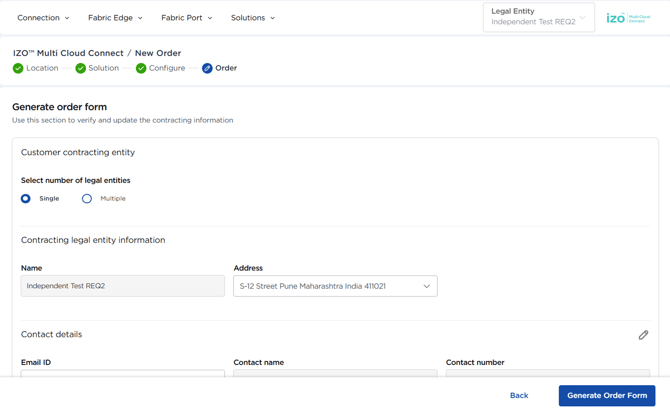
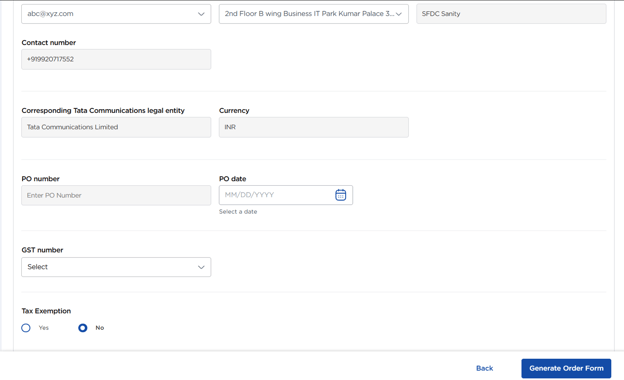
Enter the Customer Contracting Entity details, then Generate Order Form.
Field
Information
Mandatory
What it is / Sample Value
Select number of legal entities
Whether the service is contracted under a single legal entity or split across multiple.
Yes
Single or Multiple
Name
The contracting legal entity the order is raised under.
Yes
your legal entity
Address
The registered address of the contracting entity.
Yes
entity address
Email ID
Contact email for the order and order-form correspondence.
Yes
contact email
Contact name
The person Tata Communications should contact about the order.
Yes
contact name
Contact number
A phone number for that contact.
Yes
contact number
-
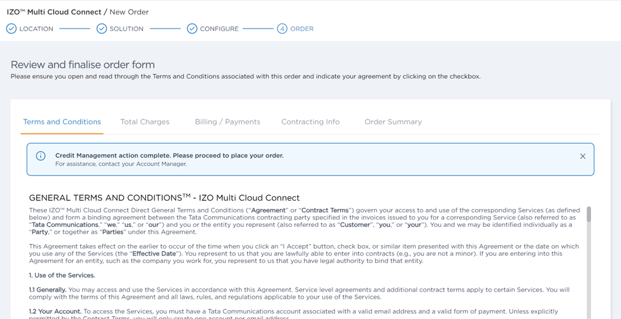
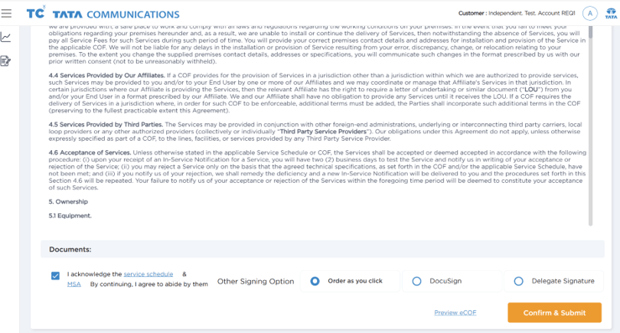
Review the Order Form (Terms and Conditions, Total Charges, Billing and Payments, Contracting Information, Order Summary).
-
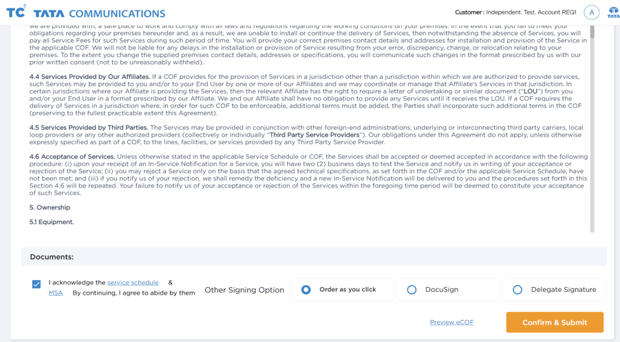
Click Order as You Click to submit directly, or DocuSign / Delegate Signature to route the order form for signature.
-
Click Preview eCOF to view or download the draft Customer Order Form.
Get Network Config
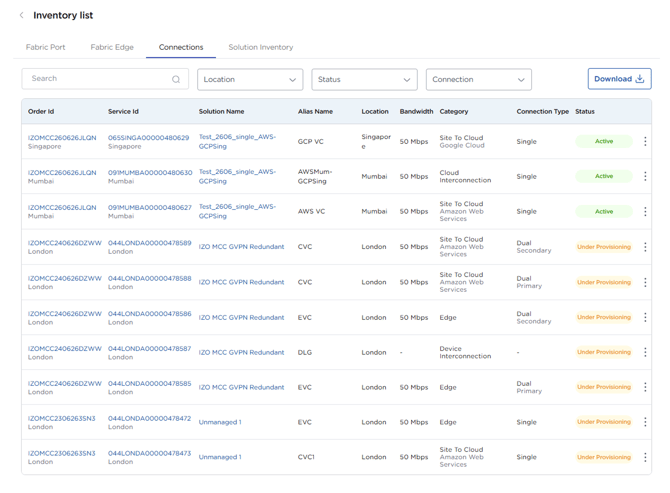
Once the order is provisioned, open Inventory --> IZO™+ Multi Cloud Connect to view Fabric Port, Fabric Edge, Connections and the full Solution Inventory.
-
Open the Connections inventory, select your Virtual Cloud Connection, then choose Get Network Config.
-
Note the Cloud IP and Peer IP (each a /30) for the primary and, on this dual link, the secondary connection – the addresses Tata Communications has allocated. You enter these as the primary and secondary subnets in Azure Private Peering.
For example, primary Cloud IP 10.128.177.158/30 and Peer IP 10.128.177.157/30; secondary Cloud IP 10.128.177.150/30 and Peer IP 10.128.177.149/30. The Get Network Config panel also shows the Tata Communications Peer ASN 4755.
Azure side – configure Azure Private Peering
These steps are completed in the Azure portal. Have the primary and secondary /30 addresses you set on the Virtual Cloud Connection (confirmed in Get Network Config) to hand.
1. Open Azure Private Peering
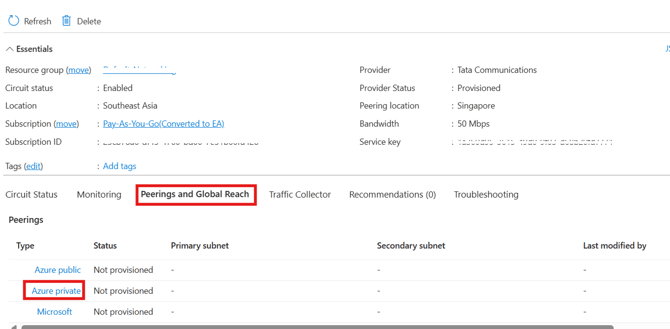
Open the ExpressRoute circuit you created, go to the Peering and Global Reach tab, then select Azure Private Peering.
2. Enter the peering details
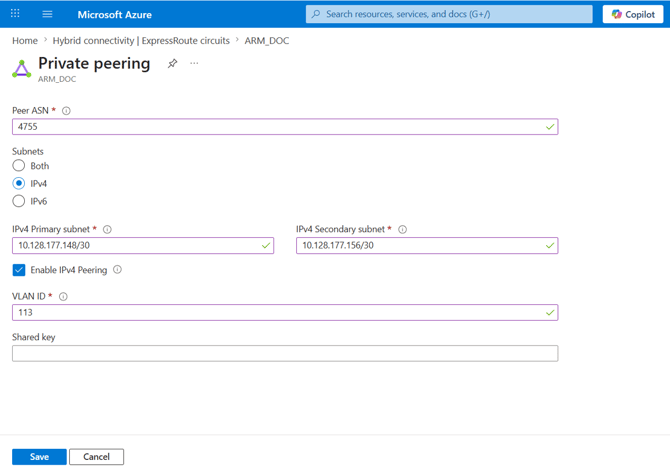
Complete the private-peering fields using the primary and secondary addresses (interface IP, neighbour IP, /30 subnet) and the VLAN and ASN from the Virtual Cloud Connection, then click Save.
|
Field |
Information |
What it is / Sample Value |
Mandatory |
|
Peer ASN |
The Tata Communications ASN on the peering – fixed at 4755. |
4755 |
Yes |
|
Subnets |
Select IPv4 (or Both / IPv6 as required). |
IPv4 |
Yes |
|
IPv4 Primary subnet |
The primary /30 subnet from Get Network Config. |
e.g. 10.128.177.148/30 |
Yes |
|
IPv4 Secondary subnet |
The secondary /30 subnet from Get Network Config. |
e.g. 10.128.177.156/30 |
Yes |
|
Enable IPv4 Peering |
Tick to enable IPv4 peering on the circuit. |
Enabled |
Yes |
|
VLAN ID |
The VLAN for the peering – 113 for private peering. |
113 |
Yes |
|
Shared key |
Optional BGP MD5 key. If used, it is a value you choose and must match on both ends. |
optional |
No |
3. Confirm the peering is up
Once saved, Tata Communications runs the onward BGP to Microsoft’s MSEE routers. When the peering is provisioned and BGP establishes, the connection is live.
For the full Azure-side reference, including Microsoft peering and resiliency, see Azure Connection Setup.