
IZO™+ Multi Cloud Connect Flex delivers your cloud connection over a public-internet first mile secured by an IPsec tunnel, with a virtual network function (VNF) – a router, firewall or SD-WAN – inserted between the Tata Communications PoP and the cloud.
This chapter covers the cloud-agnostic part of the TCx Portal order – product selection, the on-ramp location and solution type, and the Fabric Port – up to the point where you insert the VNF. The cloud-specific Virtual Cloud Connection and the cloud-side setup continue on your cloud service providers’ sepcific pages.
What this is
IZO™+ Multi Cloud Connect Flex delivers your cloud connection over a public-internet first mile secured by an IPsec tunnel, with an in-path virtual network function (VNF) – a router, firewall or SD-WAN – between the Tata Communications PoP and the cloud. This page walks the cloud-agnostic part of the order; at the Virtual Cloud Connection step you branch to your target cloud and finish there. If you are ordering the private-MPLS first-mile service instead, see Placing Your IZO™+ Multi Cloud Connect First Direct Order. For the difference between the two, see Direct vs Flex.

Before you start
Complete the Pre-requisites Checklist and Account Setup and IAM, and have the TCx Portal Walkthrough to hand.
Flex uses customer-defined BGP addressing at ordering time – have your interface IP, neighbour IP, subnet (/30) and your ASN ready; you enter them at the Virtual Cloud Connection step.
The cloud-side artifact you need first depends on the provider: AWS needs only your AWS Account ID; Azure needs an ExpressRoute circuit --> service key; Google Cloud needs a Partner Interconnect VLAN attachment --> pairing key.
Step 1 – Product selection
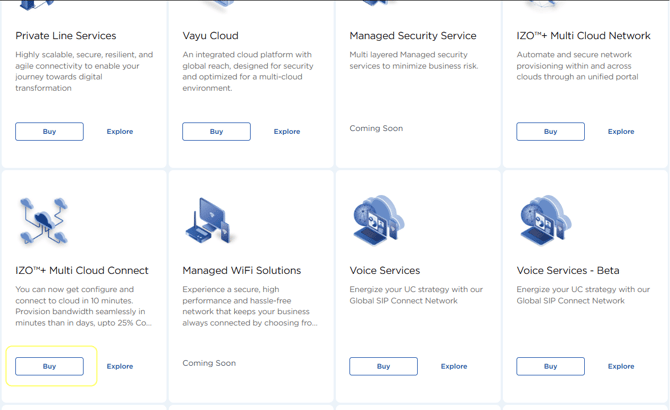
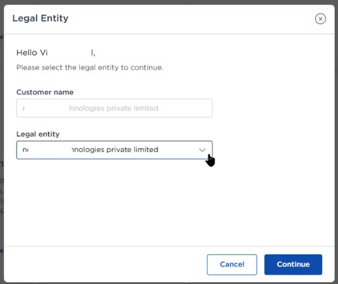
From the sidebar, open Orders to reach the Order Tracking screen, then click New Order (top-right). On the Product page, locate IZO™+ Multi Cloud Connect and click Buy. Select the Legal Entity the service will be contracted under (based on where cloud connectivity is required), then continue.
Step 2 – Cloud on-ramp location
-
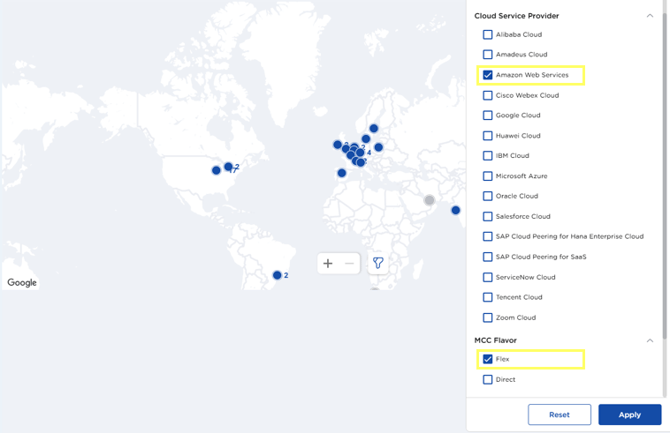
Click the Filter icon, set Cloud Provider and MCC Flavor = Flex, then Apply.
-
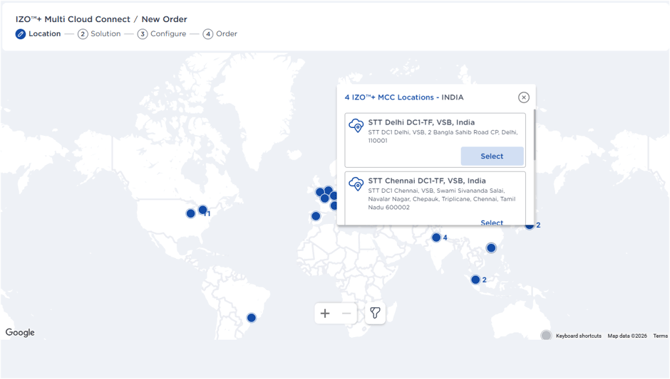
Select the location on the map, then choose the Data Center Location. This sets where the Virtual Cloud Connection terminates.
Step 3 – Solution design (naming and solution type)
-
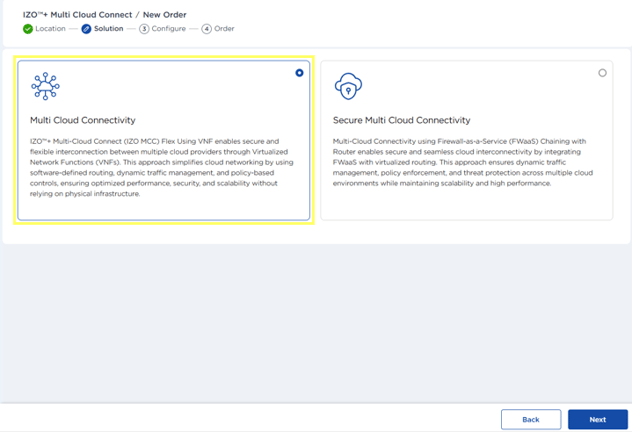
Select Multi Cloud Connectivity, then Next.
-
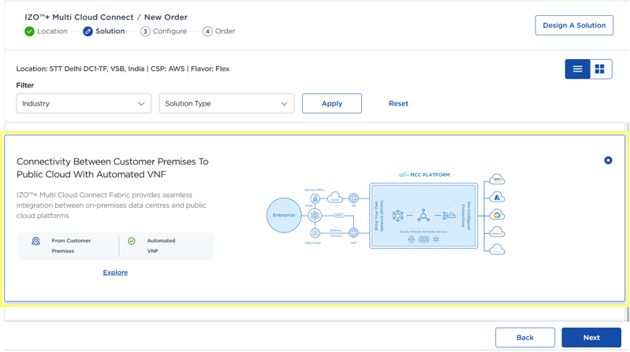
Select Connectivity Between Customer Premises to Public Cloud With Automated VNF, then Next. This routine use case establishes a single link between the customer PE and the public cloud, with the VNF inserted automatically in the path.
-
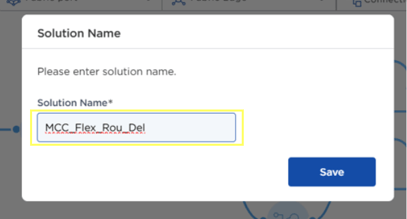
Enter a Solution Name.
This document uses single connectivity. If a Dual Connectivity element is present on the canvas, and if you do not need it, right-click it --> Delete --> Yes.
Step 4 – Fabric Port configuration
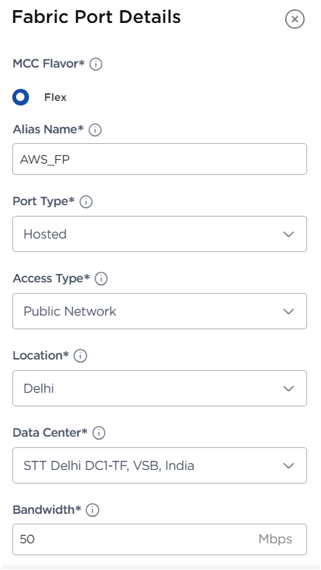
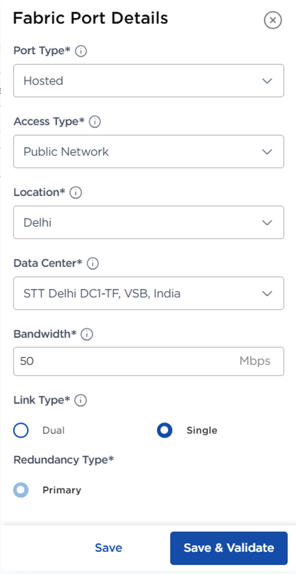
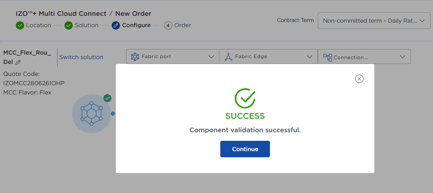
The Quote Code is generated automatically and shown on screen. Double-click the Fabric Port icon, complete the fields, then Save and Validate. On success a confirmation reads “Component validation successful.”
|
Field |
Information |
Mandatory |
What it is / Sample Value |
|
MCC Flavor |
Fabric Port supports both MCC flavors: Direct – A direct link from Tata Communications PoP to the Cloud Service Provider (CSP). Flex – Adds a VNF between the PoP and CSP for advanced features like firewall or SD-WAN. |
Yes |
Flex |
|
Alias Name |
Alias Name acts as a unique identifier to link components, enabling easy reference throughout the solution. |
Yes |
AWS_FP |
|
Port Type |
Choose the port type on the MCC Fabric:
|
Yes |
Hosted |
|
Access Type |
Defines the type of access required on the selected MCC Fabric port:
|
Yes |
Public Network |
|
Location |
Select the location where you want the Fabric Port provisioned. This serves as the entry point into the IZO™+ MCC SDCI network. |
Yes |
Delhi |
|
Data Center |
Select the data center for your chosen location. This is where your Fabric Port will be set up. |
Yes |
STT Delhi DC1 -TF, VSB, India |
|
Bandwidth |
Choose how much bandwidth you'd like to reserve for this Fabric Port. |
Yes |
50 Mbps |
|
Link Type |
Choose your Fabric Port setup:
|
Yes |
Single |
|
Redundancy Type |
Choose Primary or Secondary in case of Dual Connectivity. |
Yes |
Primary |
Flex first-mile difference: the Fabric Port Access Type is Public Network – the internet underlay – whereas Direct uses private (Layer 3 / Layer 2) access. Flex can also use Layer 3 private MPLS network as well for first mile connectivity. Chose Access Type as “L3 Private” for using underlay MPLS network.
Step 5: Adding VNF and Virtual Edge Connection
After the Fabric Port validates, insert the VNF – the in-path router, firewall or SD-WAN that Flex runs between the Tata Communications PoP and the cloud – then wire it to the Fabric Port with a Virtual Edge Connection. The Edge Connection links the Fabric Port (A-end) to the VNF (Z-end) so traffic passes through the VNF before it reaches the Virtual Cloud Connection. Configure both on that page, then return here for the Virtual Cloud Connection:
Step 6: Virtual Cloud Connection: choose your cloud
At the Virtual Cloud Connection step, select your target cloud service provider. The Virtual Cloud Connection fields, order completion and the cloud-side setup are specific to each provider and continue on that cloud's page as one flow – follow the page for your cloud:
-
IZO™+ Multi Cloud Connect Flex – Azure: Virtual Cloud Connection, order & connection
- IZO™+ Multi Cloud Connect Flex – GCP: Virtual Cloud Connection, order & connection
Your cloud provider specific page carries the checkout and Get Network Config steps, so you complete the order there without returning to this page